
1. المقدمة
The SteelSeries Kana Optical Gaming Mouse is engineered for precision and versatility, designed to accommodate all three primary grip styles: palm, claw, and fingertip. This ambidextrous mouse features an ergonomic button layout and size, developed in collaboration with professional gaming teams to ensure consistent performance and accuracy in competitive environments. This manual provides comprehensive instructions for setup, operation, maintenance, and troubleshooting to help you maximize your gaming experience.
2. محتويات العبوة
- SteelSeries Kana Optical Gaming Mouse (White)
- Quick Start Guide (integrated into this manual)
3. انتهى المنتجview
Familiarize yourself with the key components of your SteelSeries Kana mouse:
- زر النقر الأيسر: زر الإجراء الأساسي.
- زر النقر بالزر الأيمن: زر الإجراء الثانوي.
- عجلة التمرير: For scrolling and a clickable middle button. The scroll wheel is illuminated.
- CPI Toggle Button: Located centrally, allows quick switching between sensitivity settings.
- Side Buttons (x2): One on each side, large and easily accessible for rapid-fire actions. These can be customized or disabled via software.
- أجهزة الاستشعار البصرية: يقع في الجانب السفلي، ويوفر تتبعًا دقيقًا.
- موصل USB: For connecting the mouse to your computer.
- كابل مضفر: Durable, tangle-free nylon cord.
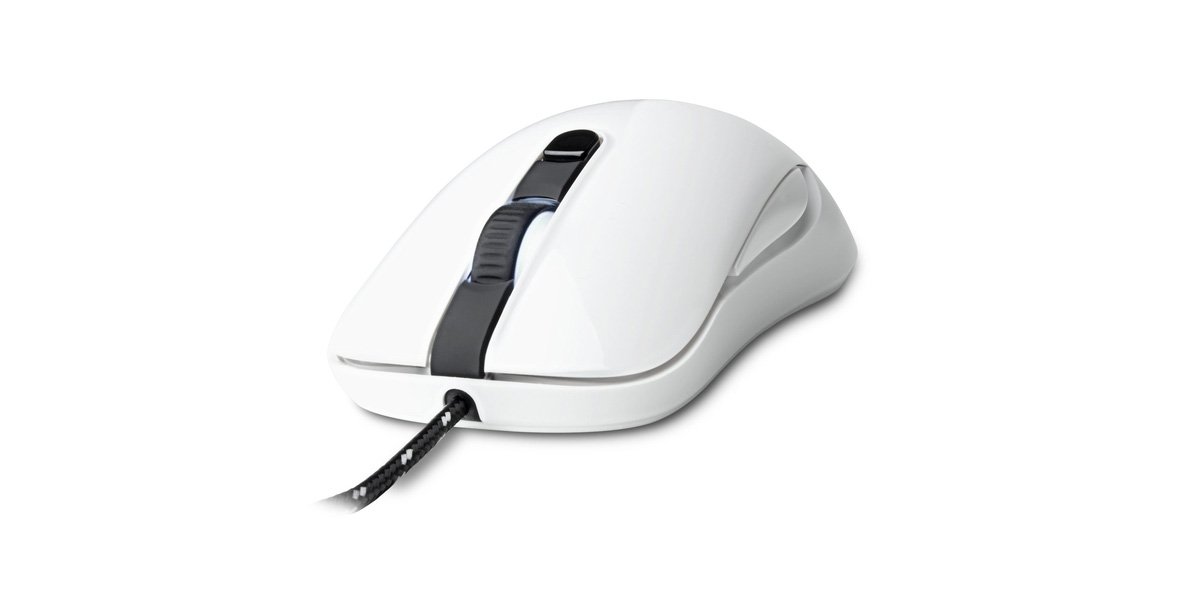
Image of the SteelSeries Kana Optical Gaming Mouse in white, showcasing its ambidextrous design, illuminated scroll wheel, and side buttons.
4. الإعداد
4.1 اتصال الأجهزة
- حدد موقع منفذ USB متاحًا على جهاز الكمبيوتر الخاص بك.
- Plug the USB connector of the SteelSeries Kana mouse into the USB port.
- Your operating system should automatically detect and install basic drivers for the mouse.
4.2 تثبيت البرنامج (محرك SteelSeries)
To unlock the full customization potential of your SteelSeries Kana mouse, including CPI settings, button programming, macros, and LED intensity, install the SteelSeries Engine software.
- قم بزيارة موقع SteelSeries الرسمي webموقع: Steelseries.com/engine
- Download the SteelSeries Engine software compatible with your operating system (Windows or macOS).
- اتبع الإرشادات التي تظهر على الشاشة لإكمال التثبيت.
- Once installed, launch the SteelSeries Engine to configure your mouse settings.
ملاحظة لمستخدمي ماك: Compatibility with macOS versions 10.9 and later for SteelSeries Engine 2.0 (required for Kana) has historically been inconsistent. Please check the official SteelSeries website for the latest software updates and compatibility information before installation.
5. تعليمات التشغيل
5.1 الوظائف الأساسية
- حركة: Move the mouse across a surface to control the cursor on your screen.
- النقر: Use the left and right buttons for primary and secondary actions.
- التمرير: Rotate the scroll wheel to navigate documents and web pages. Press the scroll wheel for its assigned middle-click function.
5.2 Adjusting CPI (Counts Per Inch)
The centrally located CPI toggle button allows you to switch between two pre-defined sensitivity settings instantly. The default CPI settings are optimized for gaming, but can be customized using the SteelSeries Engine software. The maximum CPI supported is 3200.
- Press the CPI toggle button once to switch to the alternate CPI setting.
- Press it again to revert to the previous setting.
5.3 Customizing with SteelSeries Engine
The SteelSeries Engine software provides extensive customization options:
- إعدادات مؤشر أسعار المستهلك: Fine-tune or set custom CPI values beyond the pre-defined options.
- برمجة الأزرار: Assign custom functions, keyboard shortcuts, or macros to any of the 6 programmable buttons (including side buttons and scroll wheel click).
- وحدات الماكرو: Create and assign complex sequences of commands with precise timing control.
- LED Intensity: Adjust the brightness of the illuminated scroll wheel.
- محترفfiles: إنشاء وحفظ العديد من المحترفينfiles for different games or applications, with automatic switching based on game triggers.
6. الصيانة
6.1 تنظيف الماوس
To ensure optimal performance and longevity, keep your mouse clean.
- الخارج: استخدم قطعة قماش ناعمة وخالية من الوبر وامسحها برفق.ampامسح سطح الفأرة بالماء أو بمحلول تنظيف خفيف. تجنب استخدام المواد الكيميائية القاسية أو المواد الكاشطة.
- أجهزة الاستشعار البصرية: Gently clean the optical sensor lens on the underside of the mouse with a dry cotton swab or compressed air to remove dust or debris.
- أقدام الفأرة: Ensure the mouse feet are clean and free of obstructions for smooth gliding.
حذر: Do not immerse the mouse in water or any cleaning solution. Avoid spraying liquids directly onto the mouse.
7. استكشاف الأخطاء وإصلاحها
| مشكلة | الحل المحتمل |
|---|---|
| Mouse not detected / Not responding |
|
| Inaccurate or erratic tracking |
|
| Buttons not responding or performing incorrectly |
|
| SteelSeries Engine software not recognizing mouse (Mac OS) |
|
8. المواصفات
| ماركة | سلسلة ستيل |
| رقم الموديل | 62029 |
| لون | أبيض |
| تقنية كشف الحركة | بصري |
| عدد الأزرار | 6 (قابلة للبرمجة) |
| اتجاه اليد | Ambidextrous (Left, Right) |
| منصة الأجهزة | PC |
| نوع الكابل | نايلون مضفر |
| وزن العنصر | 0.16 كيلوغرام |
| ميزة خاصة | Ergonomic Design, Illuminated Scroll Wheel |
9. الضمان والدعم
9.1 معلومات الضمان
The SteelSeries Kana Optical Gaming Mouse comes with a ضمان محدود لمدة سنة واحدة يسري هذا الضمان من تاريخ الشراء. ويغطي عيوب التصنيع وجودة الصنع في ظل الاستخدام العادي. ولا يغطي الأضرار الناجمة عن سوء الاستخدام أو الحوادث أو التعديلات غير المصرح بها أو التلف الناتج عن الاستخدام العادي. يرجى الاحتفاظ بإثبات الشراء لتقديم مطالبات الضمان.
9.2 دعم العملاء
For technical assistance, warranty claims, or further information, please visit the official SteelSeries support webموقع:
You can find FAQs, driver downloads, and contact information for customer service on their webموقع.