
1. المقدمة
The Genius Wireless Ring Mouse is a compact, innovative input device designed for convenient in-air cursor control and scrolling. It features a 2.4GHz wireless connection, a 1000 dpi optical sensor, and Genius Touch Control Technology for intuitive operation. This manual provides essential information for its proper use and care.
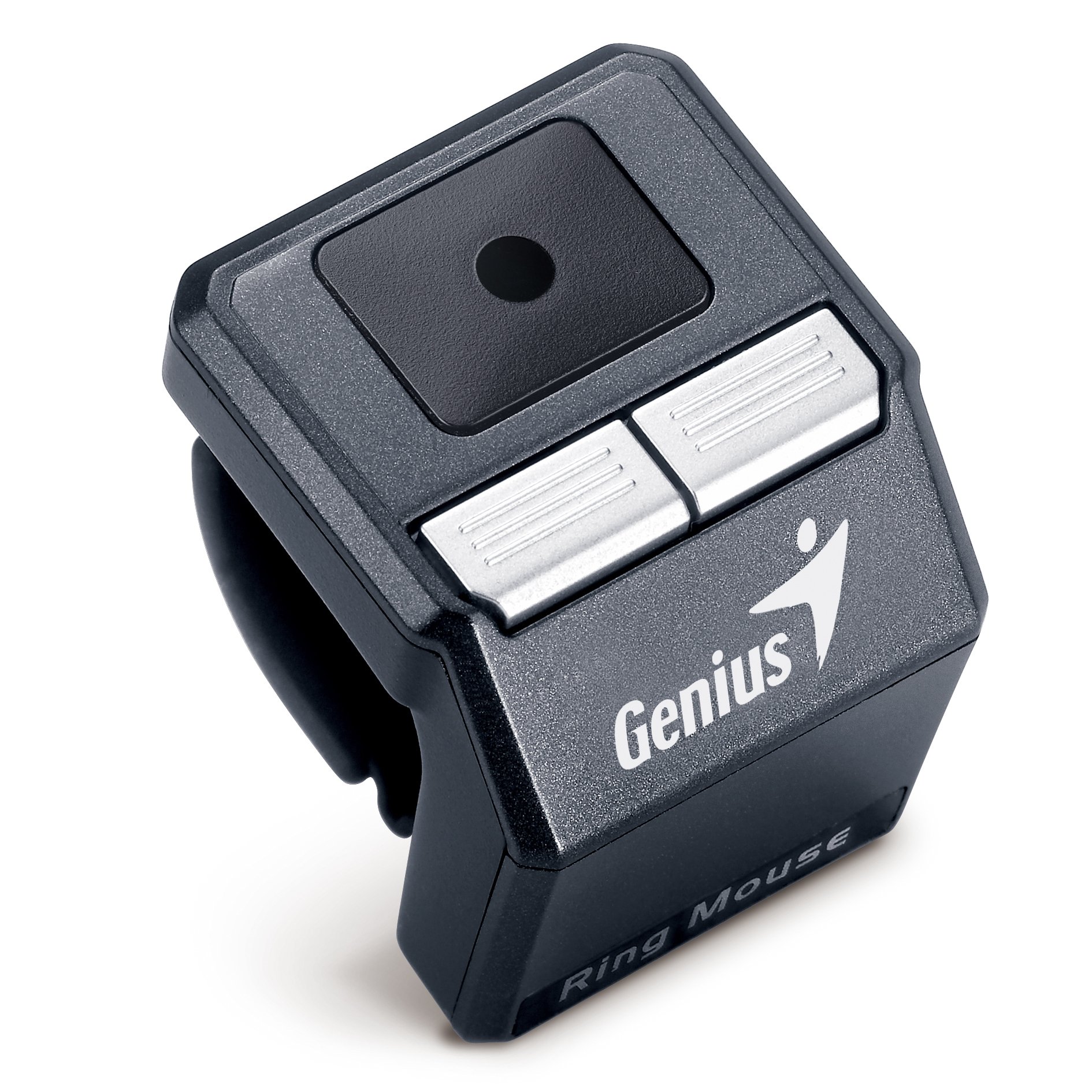
Image 1.1: The Genius Wireless Ring Mouse and its retail packaging.
2. مواصفات المنتج
- Ring Design: Unique ring concept with comfortable rubber grip for secure wear.
- 2.4 جيجاهرتز لاسلكي: Minimizes interference and extends working distance up to 10 meters.
- OptoWheel Touch Control: Innovative Touch Control technology with a 1000 dpi optical sensor for precise movement.
- Air Cursor Movement and Scrolling: Slide your thumb on the touch panel area for in-air cursor control and scrolling.
- Portable USB Charger: Charge the built-in Li-ion battery from a notebook or PC.
- حقيبة الحمل: Provides reliable protection for the Ring Mouse.

Image 2.1: Key features of the Genius Wireless Ring Mouse, including 2.4GHz wireless, OptoWheel Touch Control, and air cursor functionality.
3. الإعداد
3.1. شحن الجهاز
- Locate the portable USB charger.
- Connect the Ring Mouse to the USB charger.
- Plug the USB charger into an available USB port on your notebook or PC.
- Allow the device to charge fully before first use. The charging indicator light (if present) will typically change color or turn off when charging is complete.
3.2. توصيل جهاز الاستقبال
- Locate the Pico Receiver.
- Insert the Pico Receiver into an available USB port on your computer.
- Your computer should automatically detect and install the necessary drivers. This is a plug-and-play device.

Image 3.1: Illustrations of the Ring Mouse design, how to charge it via USB, and the compact Pico Receiver.
4. تعليمات التشغيل
4.1. Wearing the Ring Mouse
Slide the Ring Mouse onto your index finger. Ensure the touch panel is positioned conveniently for your thumb to access. The comfortable rubber grip should provide a secure fit.
4.2. Cursor Movement and Scrolling
- حركة المؤشر: Gently slide your thumb across the central touch panel area to move the cursor on your screen. The 1000 dpi optical sensor provides responsive tracking.
- التمرير: Use specific gestures on the touch panel (refer to the device's quick start guide or manufacturer's software for detailed gestures) to scroll through documents or web الصفحات.
4.3. وظائف الأزرار
The Ring Mouse features buttons for various functions. Typically, these include left-click, right-click, and a scroll lock or mode switch. Consult the specific button layout on your device and any accompanying software for customization options.
- Mouse Mode (Default): Standard mouse functionality for everyday computing.
- وضع العرض: Optimized for presentations, allowing easy slide navigation.
- Media Center Mode: Designed for controlling media playback.
Switch between modes using the designated button or software settings to adapt the mouse's functionality to your task.
5. الصيانة
5.1. التنظيف
To clean the Ring Mouse, gently wipe its surface with a soft, dry, or slightly damp قطعة قماش. تجنب استخدام المواد الكيميائية القاسية أو المنظفات الكاشطة أو الرطوبة الزائدة، لأن ذلك قد يتلف الجهاز.
5.2. العناية بالبطارية
- The device uses a built-in Li-ion battery. For optimal battery life, avoid fully discharging the battery frequently.
- قم بتخزين الجهاز في مكان بارد وجاف عندما لا يكون قيد الاستخدام لفترات طويلة.
- Use only the provided USB charger or a compatible charging cable.
5.3. التخزين
When transporting or storing the Ring Mouse, use the provided carrying case to protect it from dust, scratches, and impacts.
6. استكشاف الأخطاء وإصلاحها
6.1. الجهاز لا يستجيب
- التحقق من البطارية: Ensure the Ring Mouse is sufficiently charged. Connect it to a USB power source and allow it to charge.
- فحص جهاز الاستقبال: Verify that the Pico Receiver is securely plugged into a working USB port on your computer. Try a different USB port.
- إعادة إنشاء الاتصال: If the connection is lost, try unplugging and re-plugging the Pico Receiver. Some devices may have a re-pairing button; consult the manufacturer's website if this is the case.
- تدخل: حرك الماوس بالقرب من جهاز الاستقبال أو بعيدًا عن الأجهزة اللاسلكية الأخرى التي قد تسبب تداخلًا.
6.2. Inaccurate Cursor Movement
- مستشعر نظيف: Ensure the optical sensor on the underside of the mouse is clean and free from dust or debris.
- Thumb Placement: Ensure your thumb is making consistent contact with the touch panel. Practice delicate movements for precision.
- سطح: While designed for in-air use, ensure there are no obstructions between the mouse and the receiver.
6.3. Difficulty with Clicking/Dragging
- يمارس: The unique design may require practice to achieve precise clicks and drag actions without inadvertently moving the cursor.
- إعدادات البرنامج: Check if there are any software settings from Genius that allow adjustment of click sensitivity or drag functionality.
7. المواصفات
| ميزة | التفاصيل |
|---|---|
| أبعاد المنتج | 1.2 × 1.3 × 1.3 بوصة |
| وزن العنصر | 4.2 أونصات |
| رقم الموديل | 31030048102 |
| ASIN | B004RF52DO |
| البطاريات | 1 بطارية ليثيوم أيون (مضمنة) |
| التكنولوجيا اللاسلكية | RF 2.4GHz |
| تقنية الاستشعار | 1000 dpi Optical (OptoWheel Touch Control) |
| الشركة المصنعة | عبقري |
| أول تاريخ متاح | 25 فبراير 2011 |
8. معلومات الضمان
For detailed warranty information regarding your Genius Wireless Ring Mouse, please refer to the warranty card included with your product or visit the official Genius webقد تختلف شروط وأحكام الضمان حسب المنطقة وتاريخ الشراء.
9. دعم العملاء
If you require further assistance or have questions not covered in this manual, please contact Genius customer support. You can typically find contact information (phone numbers, email, or support portals) on the official Genius webموقع: www.geniusnet.com.