
1. المقدمة
The NETGEAR DGN3500 N300 Wireless Gigabit ADSL2+ Modem Router integrates an ADSL2+ modem and a Wireless-N router into a single device. This unit is designed to deliver high-speed internet access and establish a robust wireless network for both home and small office environments. This manual provides essential instructions for the setup, operation, and maintenance of your NETGEAR DGN3500 device.
2. محتويات العبوة
قبل البدء بعملية التثبيت، يرجى التأكد من أن العبوة تحتوي على العناصر التالية:
- NETGEAR DGN3500 N300 Wireless Gigabit ADSL2+ Modem Router
- كابل إيثرنت
- Phone Cable (DSL Cable)
- محول الطاقة
- Resource CD (may contain software and documentation)
- دليل التثبيت السريع
3. جسديا أكثرview
Familiarize yourself with the device's indicators and ports.
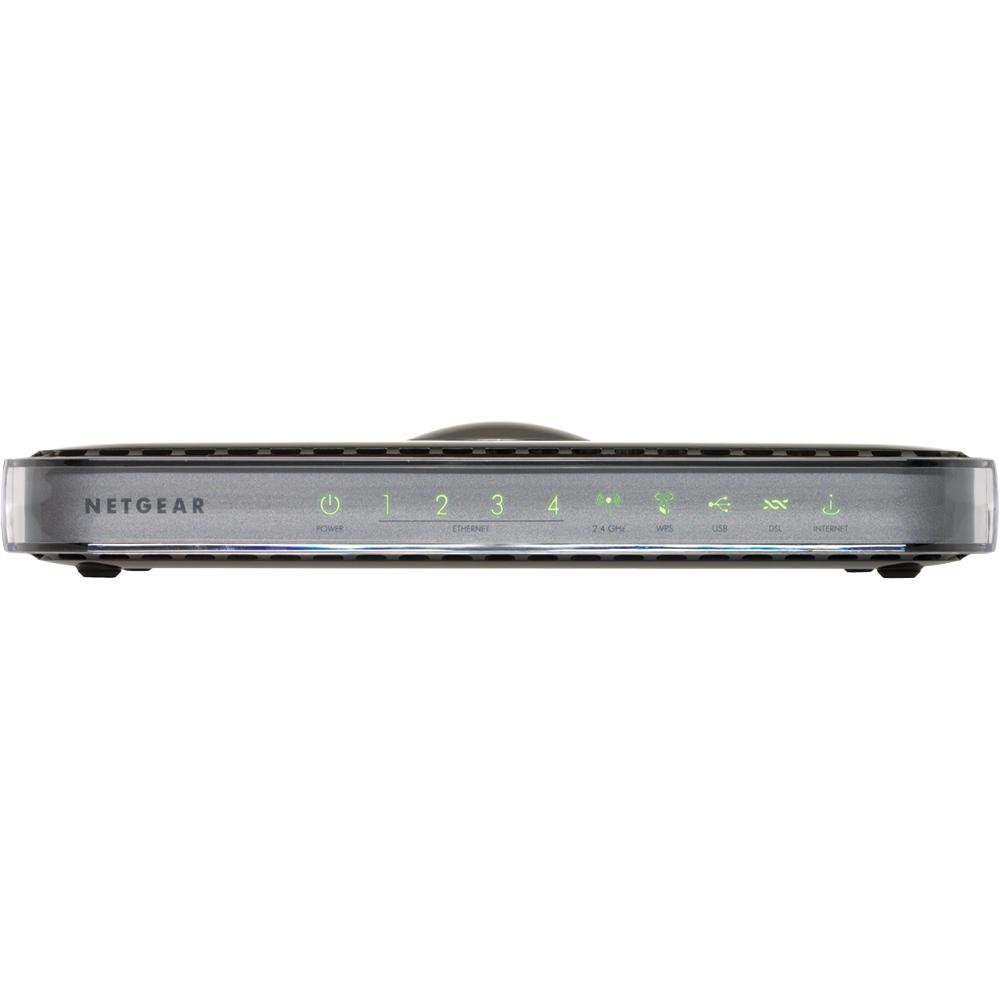
الصورة: الجبهة view of the NETGEAR DGN3500 N300 Wireless Gigabit ADSL2+ Modem Router, showing its indicator lights and sleek design.
مصابيح LED باللوحة الأمامية
- مؤشر الطاقة LED: يشير إلى حالة الطاقة للجهاز.
- مؤشر LED للإنترنت: Illuminates when an active ADSL connection is established and flashes to indicate internet activity.
- LED لاسلكي: Indicates the status and activity of the wireless network.
- مؤشرات LED لشبكة LAN (1-4): Each LED corresponds to a wired Ethernet port, indicating connection and activity.
- يو اس بي ال اي دي: Indicates activity on the USB port, typically when a storage device is connected and accessed.
المنافذ والأزرار الموجودة باللوحة الخلفية
- منفذ DSL: Connects the modem router to your ADSL telephone line.
- منافذ إيثرنت (1-4): Four 10/100 Fast Ethernet ports for connecting wired devices such as computers, gaming consoles, or network printers.
- منفذ USB: Supports ReadySHARE functionality for connecting a USB storage device to share fileعبر شبكتك.
- زر التشغيل / الإيقاف: يتحكم في مصدر الطاقة للجهاز.
- منفذ محول الطاقة: Connects the provided power adapter to the device.
- زر إعادة الضبط: A recessed button used to restore the device to its factory default settings. Use a paperclip or similar pointed object to press and hold for approximately 10 seconds.
4. دليل الإعداد
4.1. اتصال الأجهزة
- قم بتوصيل خط DSL: Connect one end of the phone cable to the DSL port on the modem router and the other end to your telephone wall jack. If you have a phone splitter, ensure the modem router is connected to the modem port of the splitter.
- توصيل الطاقة: Plug the power adapter into the power adapter port on the modem router and then into an electrical outlet. Press the Power On/Off button if necessary. Wait for the Power LED to turn solid green.
- توصيل جهاز كمبيوتر (اختياري للإعداد الأولي): For initial configuration, you may connect a computer directly to one of the Ethernet ports (1-4) on the modem router using an Ethernet cable. This ensures a stable connection during setup.
4.2. Software Configuration (Initial Setup)
- Access the Router Interface: افتح web browser on a connected computer. In the address bar, type http://www.routerlogin.net or http://192.168.0.1 واضغط على Enter.
- تسجيل الدخول: عند المطالبة، أدخل اسم المستخدم الافتراضي (عادةً مسؤل) وكلمة المرور (عادةً كلمة المرور). These credentials can be found on a label on the device or in the Quick Installation Guide.
- تشغيل معالج الإعداد: The NETGEAR Genie setup wizard should launch automatically. Follow the on-screen instructions to configure your internet connection. You will need your Internet Service Provider (ISP) details, including your DSL username and password.
- تكوين الشبكة اللاسلكية: During the setup, you will be prompted to set up your wireless network (Wi-Fi). Choose a unique network name (SSID) and a strong password (WPA2-PSK recommended). Note these details for connecting your wireless devices.
- الإعداد الكامل: Once the wizard is complete, save your settings. The modem router will restart, and your internet connection should become active.
5. تعليمات التشغيل
5.1. تهيئة الشبكة اللاسلكية
- توصيل الأجهزة: On your wireless devices (laptops, smartphones, tablets), search for available Wi-Fi networks. Select the SSID you configured during setup and enter the wireless password.
- تغيير إعدادات الواي فاي: To modify your Wi-Fi network name (SSID), password, or security type, log back into the router's web الواجهة (http://www.routerlogin.net). Navigate to the Wireless Settings section.
- Push 'N' Connect (WPS): For WPS-compatible devices, press the WPS button on the modem router and then activate WPS on your device within two minutes to establish a secure connection without entering a password.
5.2. ReadySHARE USB Storage
The ReadySHARE feature allows you to connect a USB storage device (e.g., a USB hard drive or flash drive) to the modem router and share its contents with all devices on your network.
- توصيل محرك أقراص USB: Plug your USB storage device into the USB port on the rear of the modem router.
- Access Shared Content: From a computer on your network, open File Explorer (Windows) or Finder (macOS). The USB drive should appear as a network share. You can also access it via the router's web interface under the ReadySHARE section.
5.3. NETGEAR Genie
NETGEAR Genie is the web-based management interface for your modem router. It provides an intuitive dashboard to manage, monitor, and repair your home network.
- حالة الشبكة: View real-time information about your internet connection, wireless network, and connected devices.
- إدارة الأجهزة: See a list of all devices connected to your network, manage their access, and view their IP addresses.
- الإعدادات المتقدمة: Access advanced features such as port forwarding, parental controls, and VPN settings.
6. الصيانة
Regular maintenance helps ensure optimal performance and security for your modem router.
- تحديثات البرامج الثابتة: تحقق دوريًا من دعم NETGEAR website for new firmware versions. Updating firmware can improve performance, add new features, and fix security vulnerabilities. You can usually update firmware through the router's web واجهة.
- إعادة التشغيل العادية: Rebooting your modem router every few weeks can help clear its memory and resolve minor connectivity issues. Simply unplug the power adapter for 10 seconds and then plug it back in.
- التنظيف المادي: Keep the device free from dust and obstructions to ensure proper ventilation. Use a soft, dry cloth for cleaning.
- أفضل ممارسات الأمان: Regularly change your router's administrative password and Wi-Fi password. Use strong, unique passwords for both.
7. استكشاف الأخطاء وإصلاحها
يتناول هذا القسم المشكلات الشائعة التي قد تواجهها.
- لا يوجد اتصال بالإنترنت:
- Check if the Internet LED is solid green. If not, verify DSL line connection and contact your ISP.
- Ensure your ISP username and password are correctly entered in the router settings.
- أعد تشغيل جهاز المودم والراوتر وجهاز الكمبيوتر الخاص بك.
- سرعة لاسلكية بطيئة:
- Ensure your devices are connected to the 802.11n network if supported.
- قلل التداخل عن طريق إبعاد جهاز التوجيه عن الأجهزة الإلكترونية الأخرى (الهواتف اللاسلكية، وأفران الميكروويف).
- تحقق من وجود تحديثات البرامج الثابتة.
- لا يمكن الوصول إلى إعدادات جهاز التوجيه:
- تأكد من أن جهاز الكمبيوتر الخاص بك متصل بجهاز التوجيه (سلكيًا أو لاسلكيًا).
- تأكد من استخدام عنوان IP الصحيح (192.168.0.1) أو URL (routerlogin.net).
- قم بمسح ذاكرة التخزين المؤقت وملفات تعريف الارتباط الخاصة بالمتصفح لديك، أو جرب متصفحًا آخر.
- إعادة التعيين إلى إعدادات المصنع الافتراضية: If you encounter persistent issues or forget your password, you can restore the modem router to its factory default settings. With the device powered on, use a paperclip to press and hold the recessed Reset button on the rear panel for approximately 10 seconds. The device will reboot with default settings.
8. المواصفات
| ميزة | مواصفة |
|---|---|
| ماركة | نت جير |
| اسم الموديل | دجن3500 |
| المعيار اللاسلكي | 802.11a/b/g/n (N300) |
| Data Transfer Rate (Wireless) | تصل إلى 300 ميجابايت في الثانية |
| عرض النطاق الترددي لمنفذ LAN | 10/100 ميجابت في الثانية (إيثرنت سريع) |
| عدد المنافذ | 1x ADSL2+ port, 4x 10/100 Fast Ethernet ports, 1x USB port |
| بروتوكول الأمان | WEP، WPA-PSK، WPA2-PSK، WPS |
| Operating System (Management) | NETGEAR Genie |
| وزن العنصر | 1.1 رطل |
| الأجهزة المتوافقة | كمبيوتر شخصي |
| تكنولوجيا الاتصال | لاسلكي |
9. الضمان والدعم
For detailed warranty information, technical support, and additional resources, please refer to the documentation included with your product. You can also visit the official NETGEAR support website for the latest drivers, firmware, and troubleshooting guides.
دعم نتغير Webموقع: https://www.netgear.com/support/