
مقدمة
This manual provides essential information for the installation, operation, and maintenance of your SmartLink SL1800 V.92 56K Data/Fax PCI Modem. Please read these instructions carefully before proceeding with installation or use to ensure proper functionality and longevity of the device.
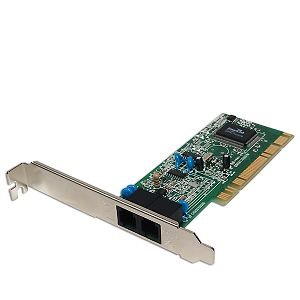
Image: The SmartLink SL1800 V.92 56K Data/Fax PCI Modem, showing its circuit board and connectors.
الإعداد والتثبيت
Follow these steps to install your SmartLink SL1800 PCI Modem into your computer system.
- انقطاع التيار الكهربائي وقطع الاتصال: Before opening your computer case, ensure the computer is completely powered off and disconnected from the main power supply.
- افتح علبة الكمبيوتر: Carefully open your computer's side panel to access the internal components.
- حدد موقع فتحة PCI: Identify an available PCI expansion slot on your motherboard. These are typically white or cream-colored slots, distinct from shorter PCIe slots.
- Insert Modem: Align the modem's PCI connector with the chosen slot. Apply gentle, even pressure to firmly seat the modem into the slot until it clicks into place. Secure the modem with a screw to the computer case if a bracket is provided.
- إغلاق علبة الكمبيوتر: Replace the computer's side panel and reconnect the power supply.
- توصيل خطوط الهاتف: Locate the two RJ-11 jacks on the modem's bracket. The jack labeled 'LINE' should be connected to your telephone wall jack using a standard phone cable. The jack labeled 'PHONE' is an optional pass-through port for connecting a telephone handset, allowing you to use the same phone line for both voice calls and modem activity.
- Power On and Driver Installation: Power on your computer. The operating system (e.g., Windows XP) should detect new hardware. Insert the driver CD (if provided) or download the latest drivers from the SmartLink website. Follow the on-screen prompts to complete the driver installation.
Upon successful installation, the modem will typically be assigned a COM port (e.g., COM3) and may display a connection icon in the system tray, indicating its readiness for use.
تعليمات التشغيل
The SmartLink SL1800 modem facilitates data and fax communication over a standard telephone line.
اتصال بالإنترنت
To connect to the internet using a Dial-Up Internet Service Provider (ISP):
- Ensure your modem drivers are correctly installed.
- Configure your operating system's dial-up networking settings with your ISP's phone number, username, and password.
- Initiate a dial-up connection. The modem supports V.92 protocol for download speeds up to 56 Kbps, depending on line conditions and ISP support.
Fax Functionality
The modem supports fax communication at speeds up to 14,400 bps.
- Use fax software compatible with your operating system (e.g., Windows Fax and Scan).
- Configure the fax software to use the SmartLink SL1800 modem.
- Prepare your document for faxing and enter the recipient's fax number.
- Send the fax. The modem will dial the number and transmit the document.
Data Compression (V.44)
The modem supports V.44 data compression, which can improve data throughput by compressing data before transmission, potentially leading to faster effective speeds for compressible data.
صيانة
The SmartLink SL1800 modem requires minimal maintenance to ensure reliable operation.
- حافظ على نظافة: Ensure the modem and the interior of your computer case are free from dust and debris. Use compressed air to gently clean components if necessary.
- تجنب الرطوبة: Do not expose the modem to liquids or excessive humidity.
- التحكم في درجة الحرارة: Operate the computer in a well-ventilated area to prevent overheating, which can affect modem performance.
- سلامة الكابل: Periodically check phone cables for damage or loose connections.
استكشاف الأخطاء وإصلاحها
If you encounter issues with your SmartLink SL1800 modem, consider the following troubleshooting steps:
- No Dial Tone or Connection:
- Verify that the phone cable is securely connected to the 'LINE' jack on the modem and the wall jack.
- Test the phone line with a standard telephone to ensure there is a dial tone.
- Check if the modem is properly seated in the PCI slot.
- Modem Not Detected:
- Ensure the modem is correctly installed in a PCI slot.
- Check Device Manager in your operating system to see if the modem is listed without errors. Reinstall drivers if necessary.
- Try installing the modem in a different PCI slot.
- Slow Connection Speeds:
- Line quality can significantly impact dial-up speeds. Ensure there are no other devices causing interference on the phone line.
- Confirm your ISP supports V.92 connections.
- Check for updated modem drivers.
- Fax Transmission Failures:
- Verify the recipient's fax number is correct and their fax machine is ready to receive.
- Ensure your fax software is correctly configured and not conflicting with other applications.
تحديد
| مجموعة الشرائح | SmartLink SL1800 |
| الواجهة | PCI |
| Data Transfer Rate (Download) | Up to 56 Kbps (V.92) |
| سرعة الفاكس | 14,400 بت في الثانية |
| ضغط البيانات | الإصدار 44 |
| جاكس | Phone and Line (RJ-11) |
| الأجهزة المتوافقة | كمبيوتر شخصي |
| الموافقات التنظيمية | FCC, CE, UL, TUV |
| أبعاد الحزمة | 7.7 × 6.2 × 1.6 بوصة |
| وزن العنصر | 2.4 أونصات |
| رمز المنتج الموحد | 683728111076 |
الضمان وإخلاء المسؤولية
Please note the following regarding product warranty and liability:
- The manufacturer is not responsible for any injuries related to the product that occur during the shipping process.
- For this reason, no refunds are provided for such incidents.
- Users are advised to inspect the product upon receipt for any shipping damage.
يدعم
For further assistance or technical support regarding your SmartLink SL1800 modem, please consider the following options:
- الشركة المصنعة Webموقع: Visit the official SmartLink website for updated drivers, FAQs, and support resources.
- المنتديات على الإنترنت: Consult online technical forums or communities for solutions to common issues.
- مُتكامل النظام: If the modem was part of a pre-built computer system, contact your system integrator or computer manufacturer for support.